Mousiki streamlines the management of student enrollments and schedules, helping you handle all administrative tasks efficiently.
From student sign-ups to rescheduling and cancellations, everything is simplified and automated on the platform.
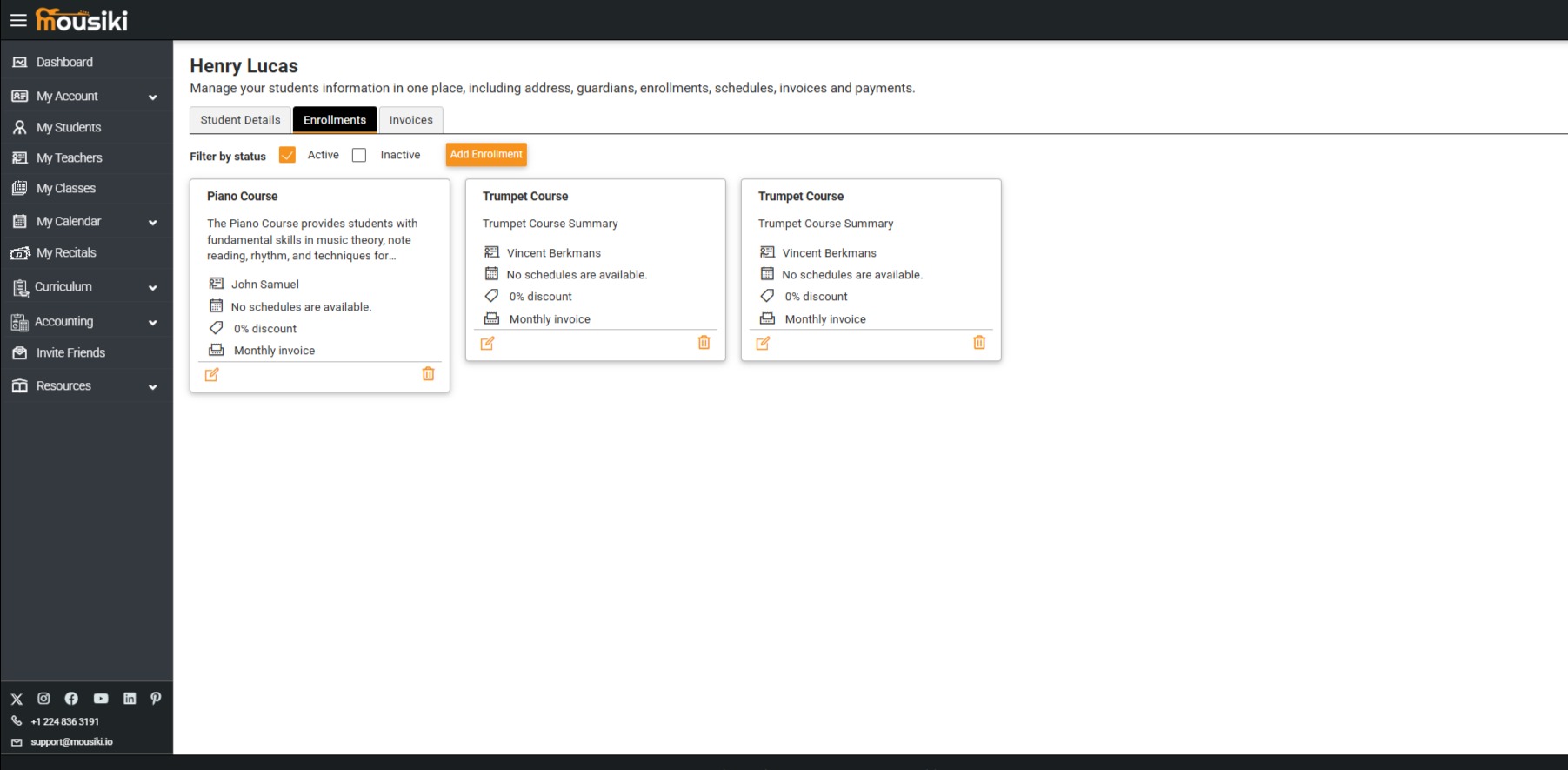
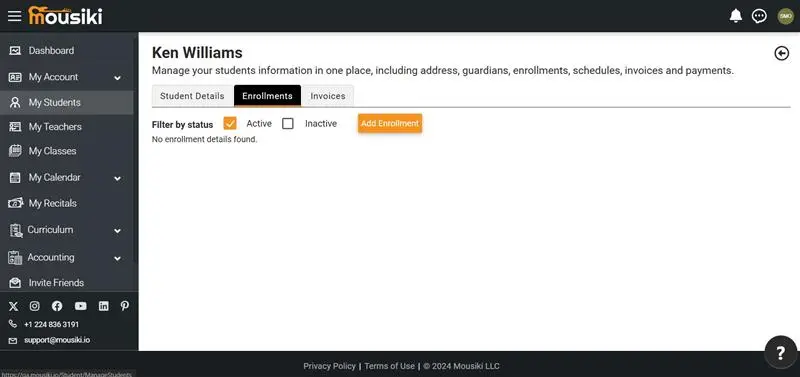
To manage a student's enrollment, simply navigate to the Enrollment tab beside the student detail page and click the Add Enrollment button.
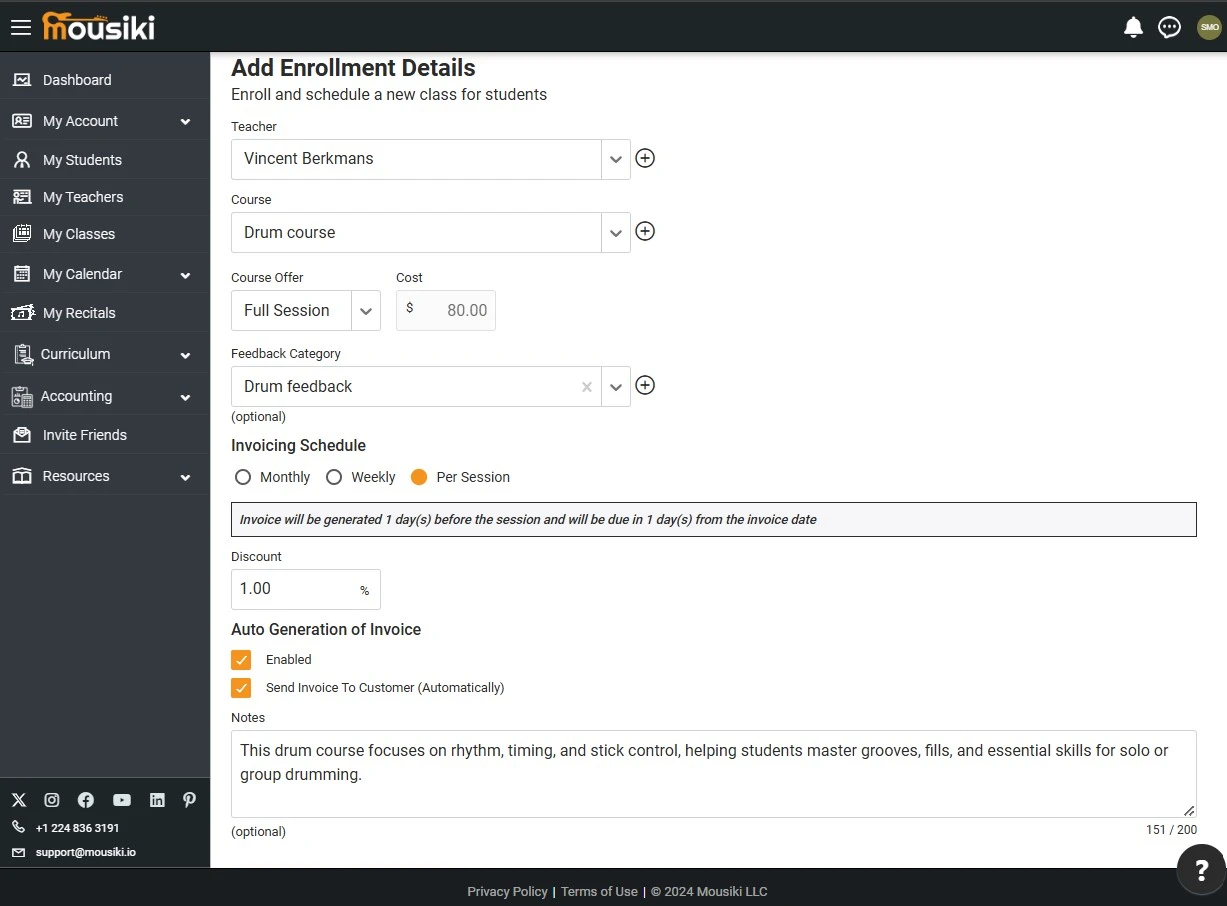
This action will direct you to the enrollment details page where you can select available teachers, courses, and provide feedback for the student.
On the Enrollment Details page, you can manage all the specifics of a student’s enrollment, including teacher assignments, course selection, and the generation of invoices.
This ensures all student-related financials are tracked and updated automatically.
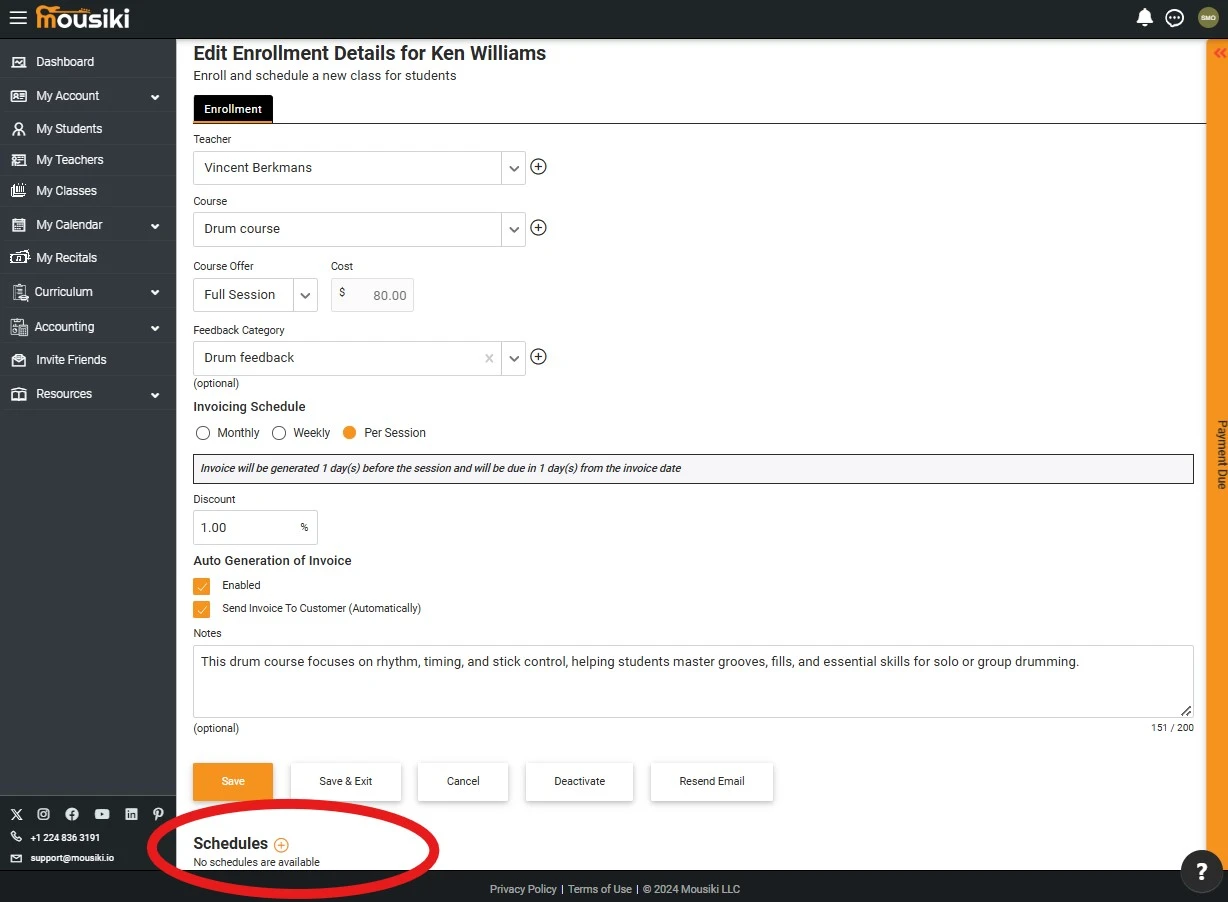
Once an enrollment is created for a student, you’ll be redirected to the Edit Enrollment Details page. Under the Enrollment Details section, you'll find a Schedules section with an Add button.
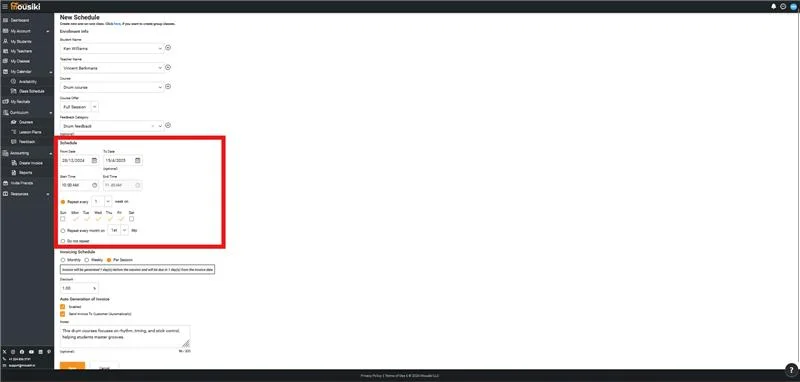
Selecting this button takes you to a scheduling page, where you can set class times by entering the start and end dates, times, and selected days of the week for the course.